
Why Traditional AI Image Editing Fails Search & Commerce in 2026
The traditional digital marketing playbook is officially broken. For years, webmasters followed a simple process: design a basic graphic, compress it to protect page speed, add a targeted Alt Text string, and hit publish. However, in 2026, failing to adopt advanced AI image editing will make your visual assets completely invisible.
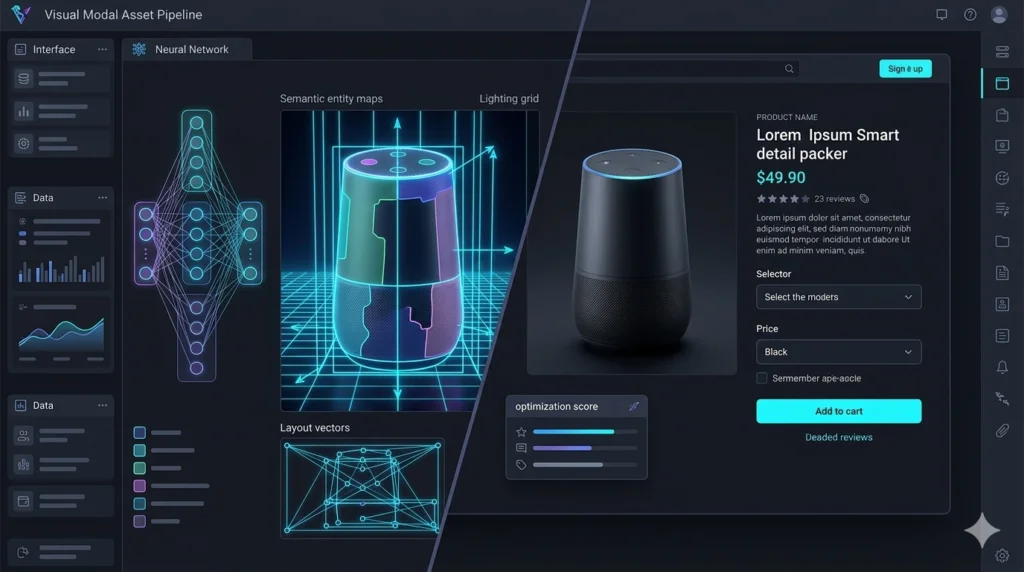
The integration of multi-modal neural networks into search engines has completely changed what is image editing at its core. Modern platforms—including Google Lens, ChatGPT Visual Search, and Gemini—no longer evaluate images by simply reading text metadata. Instead, they scan raw pixel structures, inspect lighting vectors, and analyze semantic entity layouts to verify information gain. If your graphics feature obvious machine distortions, low resolution, or unoriginal templates, search crawlers will instantly categorize your content as low-quality filler.
MODERN ASSET PIPELINE
| Stage | Step | Description |
|---|---|---|
| 1 | Prompt Input | Raw text or base image ingestion |
| 2 | Structural Control | Applying ControlNet vectors and canvas restrictions |
| 3 | Pixel Polishing | Fix semantic bleed, render clean fonts |
Exposing the Visual “Wrapper Economy”
The biggest challenge for creators is navigating the saturated software marketplace. Today, a massive percentage of commercial photo apps are not unique technologies. Instead, they are expensive wrappers built around open-source APIs like Stable Diffusion. Consequently, they offer very limited control over AI image editing.
When you pay a monthly fee for a generic web app, you are often paying for a fancy interface. In fact, this interface simply passes your request to a foundational model. Because these tools lack deep architectural engineering, they cannot fix advanced rendering bugs. As a result, you are left with repetitive outputs that fail to rank.
To beat your competitors and secure top-tier organic rankings, your workflow must transition toward programmatic, precision-based control. Whether you are scaling an agency or learning how to generate ai images for free, mastering low-level layout variables is the only way to satisfy modern search criteria and convert human traffic.
Top AI Image Generators & Editors Reviewed
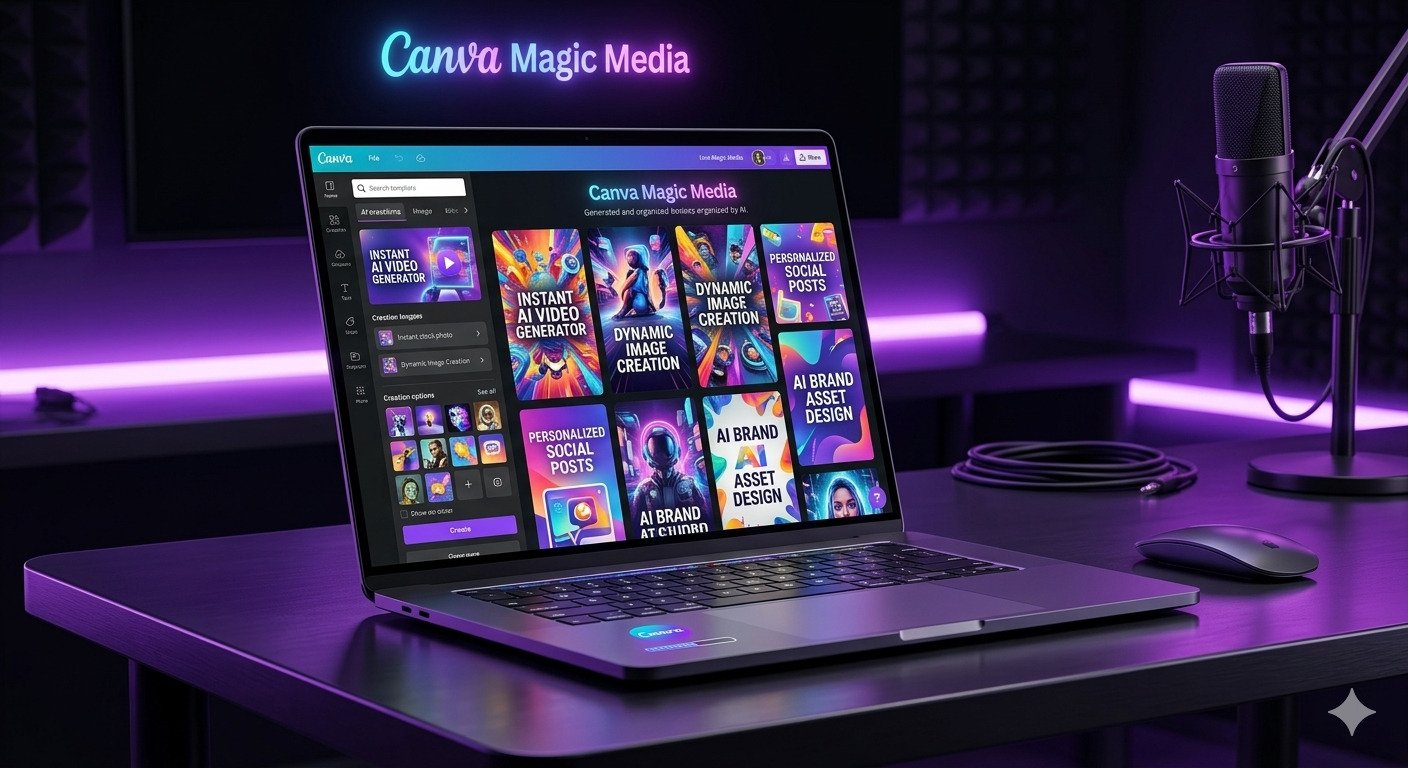
Canva AI (Magic Media): The All-in-One Creator Ecosystem
Canva’s integrated Magic Media suite is an intuitive engine. It is designed for marketing teams and rapid visual layout prototyping. In fact, by nesting generative AI into a multi-channel canvas, it eliminates the need for standalone tools. Consequently, this setup is efficient. It helps you generate quick mockups, social media placeholders, and unified brand assets on the fly.
| Metric | Specification Standard |
| Core Architecture | Cloud-based proprietary generative design asset generator |
| Free Tier Allowance | Strict 20 premium tokens per user account monthly reset |
| Primary Use Case | Rapid social media asset production and layout mockups |
| Processing Speed | Standard cloud render queue (under 12 seconds per generation) |
Adobe Firefly: The Corporate Standard for Commercial Use
Adobe Firefly is the industry baseline for digital asset production. Furthermore, it focuses heavily on legal compliance and creative control. Unlike consumer engines, Firefly is a highly controlled system. Specifically, it integrates perfectly with professional vector environments and high-end layout pipelines. Therefore, it is engineered for agencies that require absolute predictability, precise style matching, and strict intellectual property protection.
| Metric | Specification Standard |
| Model Dataset | Exclusively trained on Adobe Stock and public domain content |
| Free Tier Credits | 25 generative credits per month on standard Adobe accounts |
| Commercial Safety | 100% legally backed and commercially safe for enterprise use |
| Speed | Enterprise-grade high-priority processing queues |

Pixlr: The Browser-Based Layer Modification Suite
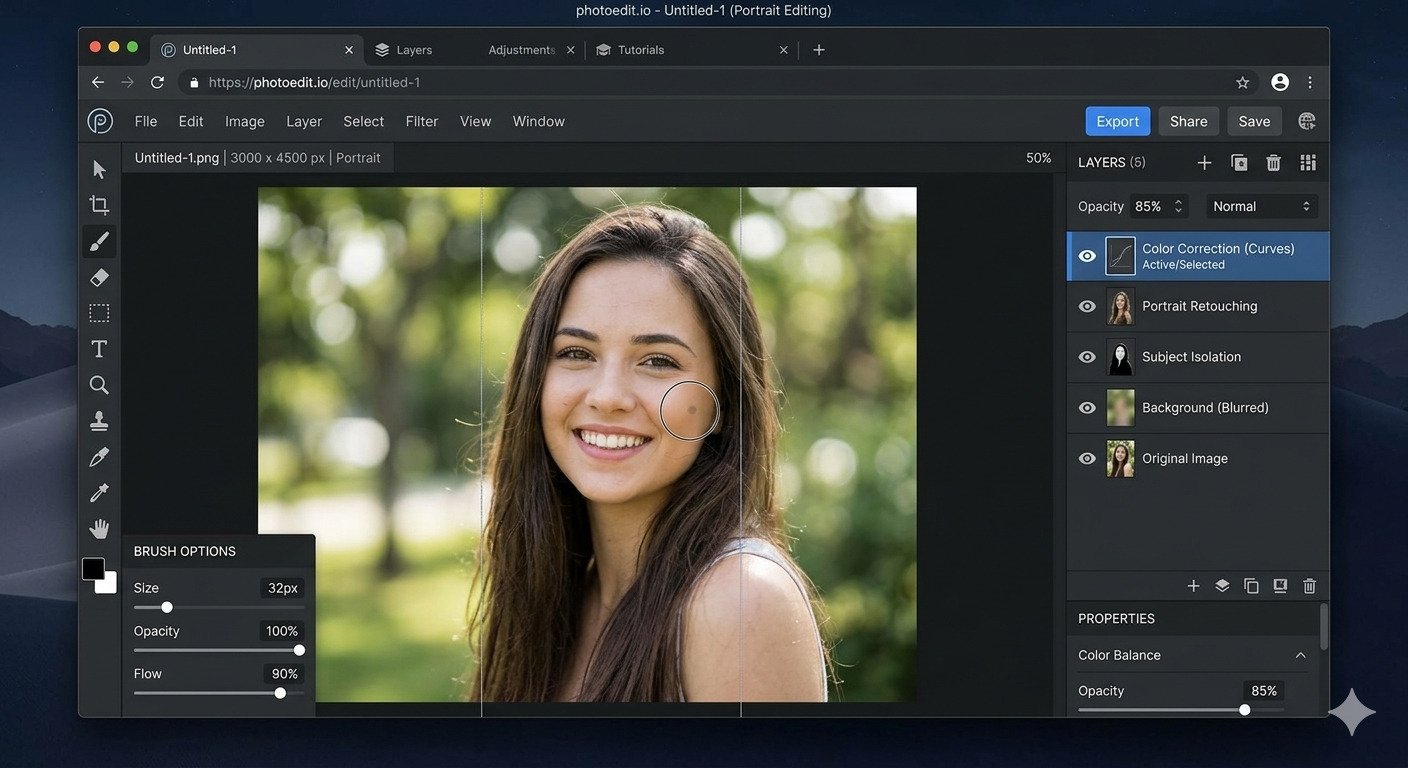
Pixlr brings traditional desktop-class editing directly into the browser, serving as a powerful alternative for developers who need multi-layer manipulation without bulky software installations. Furthermore, it is built on top of a highly responsive, hardware-accelerated rendering engine. This engine combines standard pixel-level editing tools with modern automated AI filters for faster AI image editing. Consequently, this combination makes it exceptionally efficient for quick localized modifications, isolated asset isolation, and direct cross-platform adjustments within a clean web interface.
| Metric | Specification Standard |
| WebGL Engine | Accelerated 2D/3D browser rendering pipeline |
| Free Tier Saves | Maximum 3 exported image assets per day |
| Best For | Multi-layer asset adjustment and targeted mask edits |
| Hardware Dependency | Local RAM and CPU-bound processing architecture |
Ideogram: The Master of Text-in-Image Design
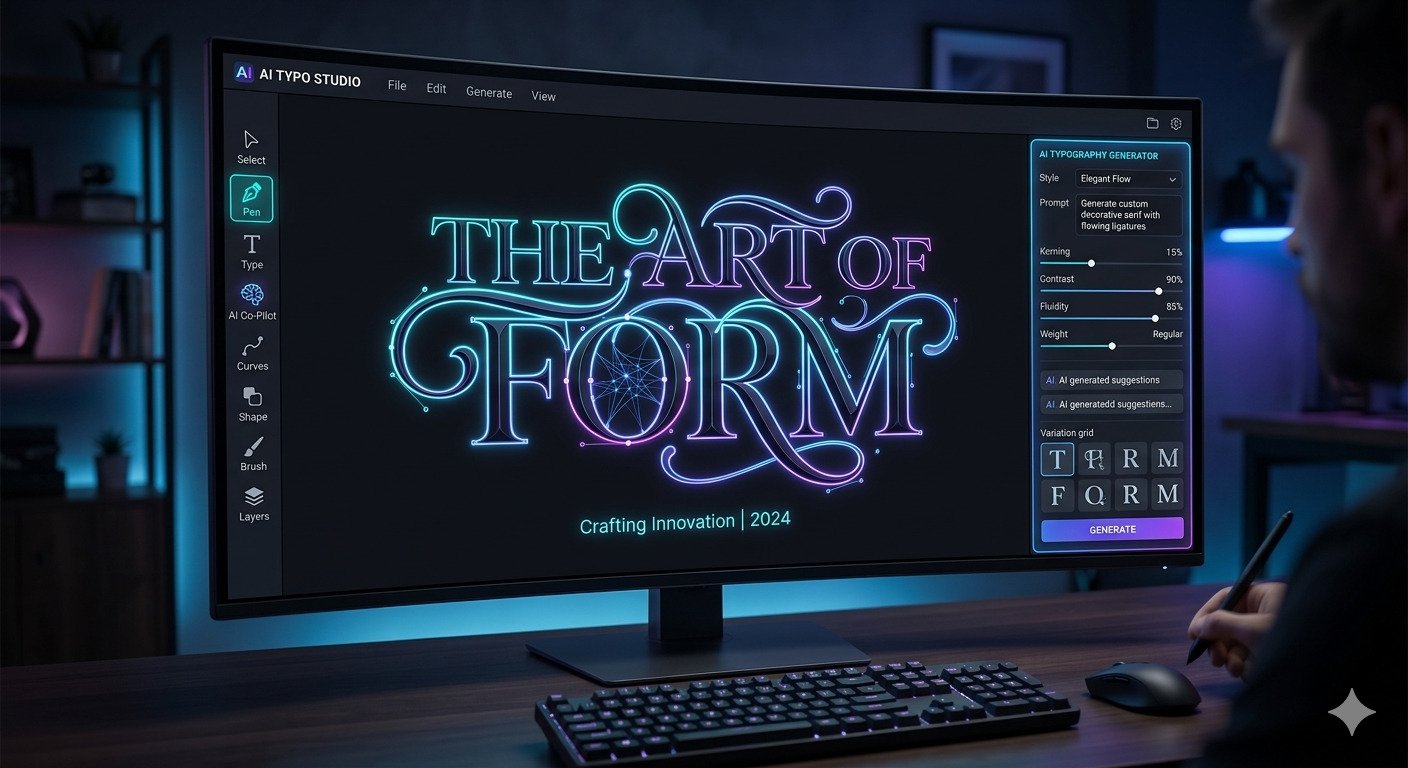
Ideogram has completely transformed the text-to-image landscape. By solving one of the oldest flaws in generative AI, it has fixed broken typography. Moreover, the platform uses a specialized neural network. This technology prioritizes text layout integration to ensure perfect results. Furthermore, it allows designers to generate posters, merchandise layouts, and complex typography banners. Consequently, the text renders perfectly every single time. Instead of treating letters as random visual patterns, it treats them as distinct structural shapes. Thus, it is an essential asset generation tool for modern graphic layout designs.
| Metric | Specification Standard |
| Typography Model | Advanced neural text layout integration layer |
| Daily Free Tier | 10 slow generation requests per day (resetting daily) |
| Primary Focus | Hyper-accurate spelling rendering and structured typography |
| Resolution Limit | Standard aspect ratio constraints on non-premium accounts |
Core Solution: How to Edit Text in Image & Maintain Same Font Consistency
When dealing with pre-generated flat visual assets, a common challenge is figuring out how to edit text in an image while preserving the exact same font structure. If an automated AI engine makes a typo on an otherwise perfect layout, you don’t have to throw away the entire graphic.
To edit text in an image with same font consistency, you must separate the asset into clean, manageable layers:
- Isolate and Remove the Typo: First, import the asset into your browser layout engine or design canvas. Use a targeted generative fill tool, patch tool, or localized content-aware mask to erase the broken lettering, blending the background area completely clean.
- Analyze the Typography Profile: Inspect the visual characteristics of the original font string (such as its weight, x-height, serif style, tracking, and letter spacing). If you are using advanced cloud platforms, you can match these variables programmatically.
- Apply Your Brand Font Kit: Instead of relying on random AI regeneration to guess the letters, manually add an editable text layer over the cleared area. By selecting a matching typeface from your brand kit and tuning the tracking value, you achieve flawless structural consistency. This ensures your final marketing asset looks unified and professional without requiring a full rebuild.
Leonardo.Ai: Feature-Rich Dashboard with High Free Allowance
Leonardo.Ai offers a powerful, enterprise-grade asset workbench. Furthermore, it is built for developers and artists who require granular control. For instance, the platform features advanced models like Alchemy and Phoenix. It also provides a comprehensive suite of tools. Specifically, these include custom model fine-tuning, control-net guidance, and live canvas AI image editing. Consequently, this deep feature set—backed by a generous daily token pool—makes it one of the most cost-effective environments for production-ready concept generation.
| Metric | Specification Standard |
| Pipeline Tech | Multi-model orchestration engine (Alchemy & Phoenix pipelines) |
| Daily Tokens Reset | 150 daily free generation tokens (generous allocation) |
| Best For | Highly detailed game assets, complex concepts, and custom models |
| Complexity Level | High-tier dashboard containing advanced parametric controls |
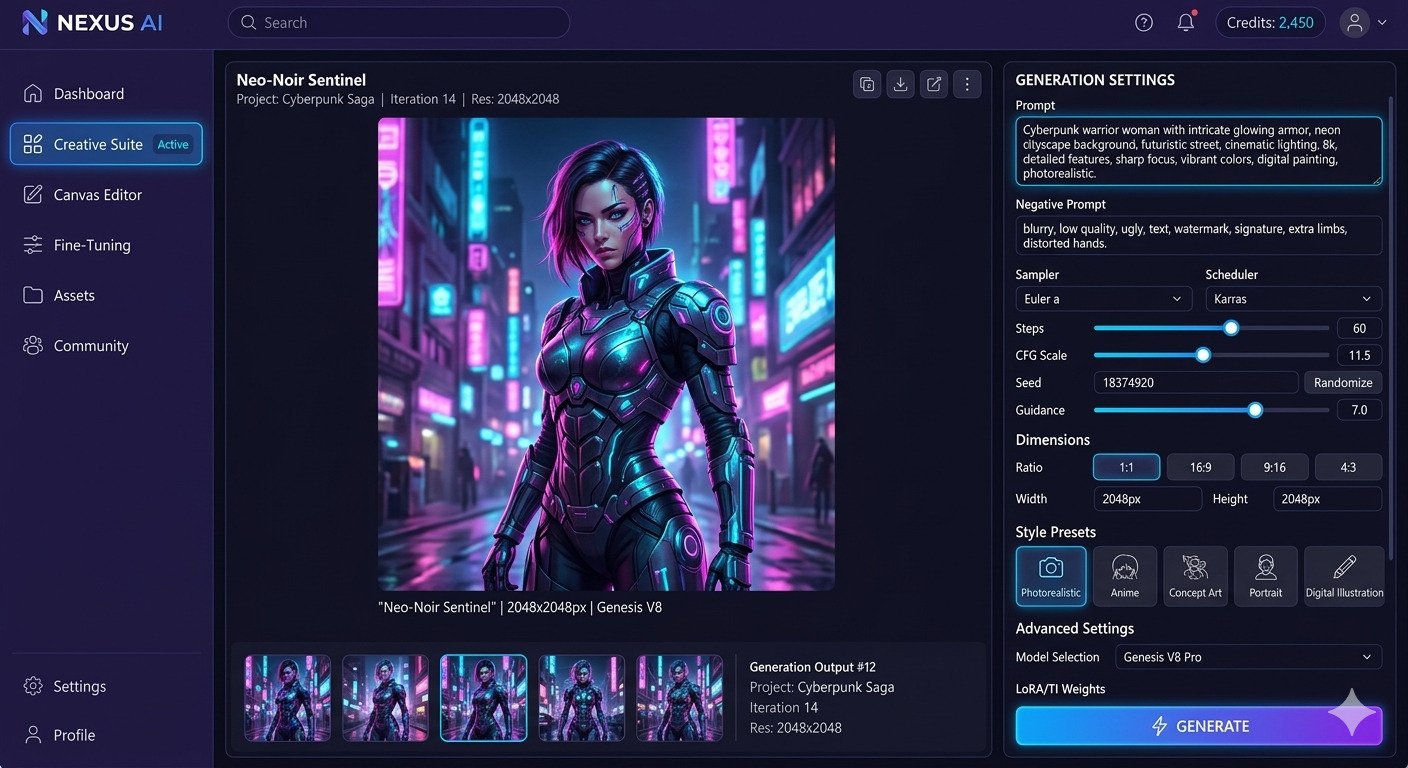
Deep-Dive into Qwen Image Edit: Overcoming Local Face Distortion in AI Image Editing
The Problem: Local Face Blending & Structural Artifacts
While open-source multi-modal models offer unprecedented creative control, developers frequently hit a major roadblock: qwen image edit cant get the faces correct out of the box. When processing localized image modifications or targeted canvas updates, Alibaba’s open-source model architecture often introduces noticeable facial blending anomalies.
This happens because the model struggles to align high-frequency facial textures with the existing pixels on the surrounding canvas. As a result, you get structural artifacts like misaligned eyes, asymmetrical jawlines, and unnatural skin textures that completely ruin commercial-grade headshots and realistic team photos.
The Local Setup Solution (VRAM & Safetensors Optimization)
To bypass these facial blending glitches and run a completely stable local instance without running out of memory, you need to apply a specialized VRAM-optimized pipeline. Below is the exact step-by-step optimization strategy.
1. Model Selection
Instead of running unoptimized base models, deploy the specialized canvas-aware pipeline from HuggingFace:
Plaintext
diffsynth-studio/qwen-image-edit-f2p
This specific variant features enhanced free-to-paint (f2p) conditioning paths, allowing for significantly cleaner edge blending and structural text-guided edits on pre-existing graphic plates.
2. VRAM Tuning for Local RTX Hardware
If you are running the workflow on local consumer GPU setups (such as an Nvidia RTX 3060/4060 with 8GB–12GB VRAM), loading full precision models will instantly trigger out-of-memory errors. The solution is to force an 8-bit floating-point precision layer by selecting:
Plaintext
qwen_image_edit_fp8_e4m3fn.safetensors
This configuration compresses the model’s weights safely, maintaining deep structural generation quality while cutting your VRAM footprint nearly in half.
3. Low Memory Fix for Budget Setups
For systems running on ultra-low hardware allocations or integrated memory, you must deploy an aggressively quantized configuration file. Switch your deployment node to run the following configuration:
Plaintext
qwen-image-edit-2509-q8_0.gguf
This setup forces CPU/RAM offloading and uses stable 8-bit quantization to prevent terminal system crashes during heavy image-to-image processing passes.
Resolving Common Modification Frustrations
How to Automatically Remove Paper Creases from Old Scanned Docs Using AI Image Editing
Preserving legacy files often requires handling physical wear and tear that occurs over time. If you are dealing with wrinkled archiving files, using a specialized automated pipeline is the fastest way to clean up the layout without losing text clarity.
The Local Inpainting Masking Workflow
- Import the Scanned Document: Upload your damaged file into an AI-powered design canvas or layer modification tool. If you are trying to solve how to edit scanned pdf image files, first convert the PDF page into a high-resolution PNG file to maintain pixel data before starting the edit.
- Apply a Localized Inpainting Mask: Select the specialized masking brush or patch tool from your dashboard. Carefully paint directly over the visible crease lines, making sure your brush stroke covers the shadow gradients caused by the paper fold.
- Execute the Cleanup Command: In your prompt prompt window, leave the text description blank or type a simple directive like “clean white paper background, remove shadows”. Run the execution engine to let the model deploy an ai editing images remove paper creases process. The engine will automatically replace the crease vectors with clean, flat textures that match the rest of the document layout flawlessly.
Overriding Text Inside Static Formats (JPEG & PNG)
Modifying text strings inside locked, flat formats can be incredibly frustrating because you cannot select the text layers directly. To bypass this restriction, you must use a workflow that combines layout mapping with predictive background filling.
The OCR Layout & Content-Aware Filling Process
- Analyze the Layout with OCR: Run your static asset through a layer editor featuring built-in Optical Character Recognition (OCR). This maps out the exact structural positions of the embedded characters.
- Erase the Existing Letters: If you are learning how to edit png image files online, use a targeted content-aware erase tool to remove the old text. This removes the pixels forming the letters while perfectly filling the background color underneath.
- Deploy an Online Text Overlap: To edit text in an image online, place a new editable text element directly over the cleared zone. Match the font size, weight, and track spacing of the surrounding layout to keep the design completely consistent.
- Alternative Document Strategies: If you are dealing with text-heavy assets and want to know how to edit image text in word, use Microsoft Word’s built-in conversion pipeline to turn the visual file into an editable text document. For quick updates on the go, you can learn how to edit text in image in mobile applications by using mobile layer apps to erase text blocks and apply matching typefaces right from your phone.
Legacy Visual Fixes: When to Use Microsoft Paint & Photoshop
While generative tools are incredibly powerful, legacy raster graphics editors still have a vital place in a web developer’s daily workflow. Knowing when to use manual pixel shifting versus cloud-based generative processing can save you hours of production time.
Manual Pixel Sizing vs. Generative Fill Processing
- Microsoft Paint for Instant Direct Fixes: When you need basic color updates or quick boundary clipping, Paint is highly efficient. In fact, learning how to edit an image in Paint is a great skill. Because it lacks complex layer rendering engines, it requires zero processing time. Consequently, it is perfect for quick, manual color fills on flat, basic assets.
- Photoshop for Advanced Production Workflows: When a project requires precise font handling, non-destructive layer masks, or complex graphic modifications, you must know how to edit image text in Photoshop. Furthermore, Photoshop’s advanced vector type replacement systems allow you to manipulate individual letter paths. Additionally, you can match intricate gradients and deploy enterprise-grade Generative Fill blocks. As a result, you can easily handle highly detailed commercial compositions.
Niche Applications: Scaling Business Visual Assets with AI Image Editing
In the commercial landscape, AI-driven visual creation has evolved from a novelty into a high-revenue operational standard. Businesses are actively seeking scalable solutions to generate, refine, and optimize their visual assets. Furthermore, building service pipelines around high-intent, high-CPC niches like AI image editing offers a lucrative monetization model. This is especially true for agencies and developers. Consequently, by leveraging advanced automation and precise design standards, you can scale operations. As a result, you can deliver premium visual assets at a fraction of the traditional production time.
E-commerce Product Asset Optimization & Amazon Listings
- The Strategy: High-converting e-commerce images rely entirely on seamless background manipulation, advanced AI image editing, and dynamic shadow matching models. Traditional product photography often suffers from flat lighting or inconsistent backgrounds that kill conversion rates. By utilizing advanced AI workflows, you can instantly strip cluttered backgrounds, replace them with studio-grade contextual settings, and inject realistic, multi-directional drop shadows that dynamically match the product’s geometry. This modern approach to AI image editing ensures product catalogs remain uniform, professional, and optimized for maximum conversions.
- Content Blueprint:
The Conversion Factor: Amazon and Shopify listings require crisp, white-background hero images alongside engaging infographic lifestyles.
Dynamic Shadows: Implementing contact shadows, ambient occlusion, and reflection casts ensures the product looks grounded and authentic rather than poorly photoshopped.
Batch Processing Pipelines: Setting up automated workflows to process hundreds of SKUs simultaneously while maintaining pixel-perfect quality across different aspect ratios.
Real Estate Virtual Staging & Background Manipulation
- The Strategy: Real estate marketing thrives on aspirational visuals, making it one of the highest-value niches in online search advertising. Property listings with furnished rooms and perfect weather sell significantly faster. The core strategy focuses on virtual room furnishing (populating empty properties with hyper-realistic 3D rendering models) and automated sky replacement to turn gloomy, overcast property shoots into vibrant, golden-hour showcases. With high-intent commercial keywords commanding a $4.5+ CPC, targeting this pipeline yields exceptional ROI for digital agencies.
- Content Blueprint:
- Virtual Staging Mechanics: Seamlessly blending digital furniture into an existing room’s perspective, matching the exact spatial depth, ambient lighting, and grain structure of the original photograph.
- Sky & Environment Replacement: Utilizing luminosity masking to replace dull backgrounds with clear blues or sunset hues, while automatically correcting the color temperature of the property’s facade to match the new environment.
- High-Value Intent Optimization: Structuring agency service pages to target commercial real estate brokers looking for premium monthly retouching retainers.
Creative Overlay Templates & Graphic Background Assets
- The Strategy: The booming creator economy and digital media industries have generated an insatiable demand for ready-to-use, professional-grade assets. Furthermore, professional video editors and graphic designers frequently search for high-converting asset selection frameworks to speed up their production workflows. Consequently, this pipeline focuses on generating and organizing transparent overlays, customizable graphic templates, textured backgrounds, and dynamic typographic assets that can be easily integrated into larger design ecosystems.
- Content Blueprint:
Asset Frameworks: Creating ultra-clean, transparent PNG assets, isolated lighting overlays (light leaks, lens flares), and high-contrast background textures that enhance the visual depth of videos and promotional banners. If you want to turn these visuals into video, see our list of free AI video editing tools without watermarks.
Typography & Vector Assets: Utilizing advanced text background design principles and real-time asset generation (such as premium glowing neon text effects) that give editors immediate, customizable visual anchors.
Distribution & Licensing: Packaging these high-demand editable images into structured asset packs or subscription pipelines, capturing consistent organic search traffic from creators looking for quick-access design resources.
Hardware Requirements for Heavy Local AI Image Editing Models
Running next-generation local AI generation models like SDXL (Stable Diffusion XL), large language models (LLMs), and advanced neural filters requires a significant shift from traditional image-editing hardware specifications. Standard photo editing relies heavily on single-core CPU speed and baseline system memory. However, local AI architectures demand massive parallel processing power and specialized memory bandwidth.
To achieve smooth, real-time generation and complex workflows without relying on cloud subscriptions, your hardware ecosystem must balance dedicated VRAM, fast system architecture, and precise visual output.
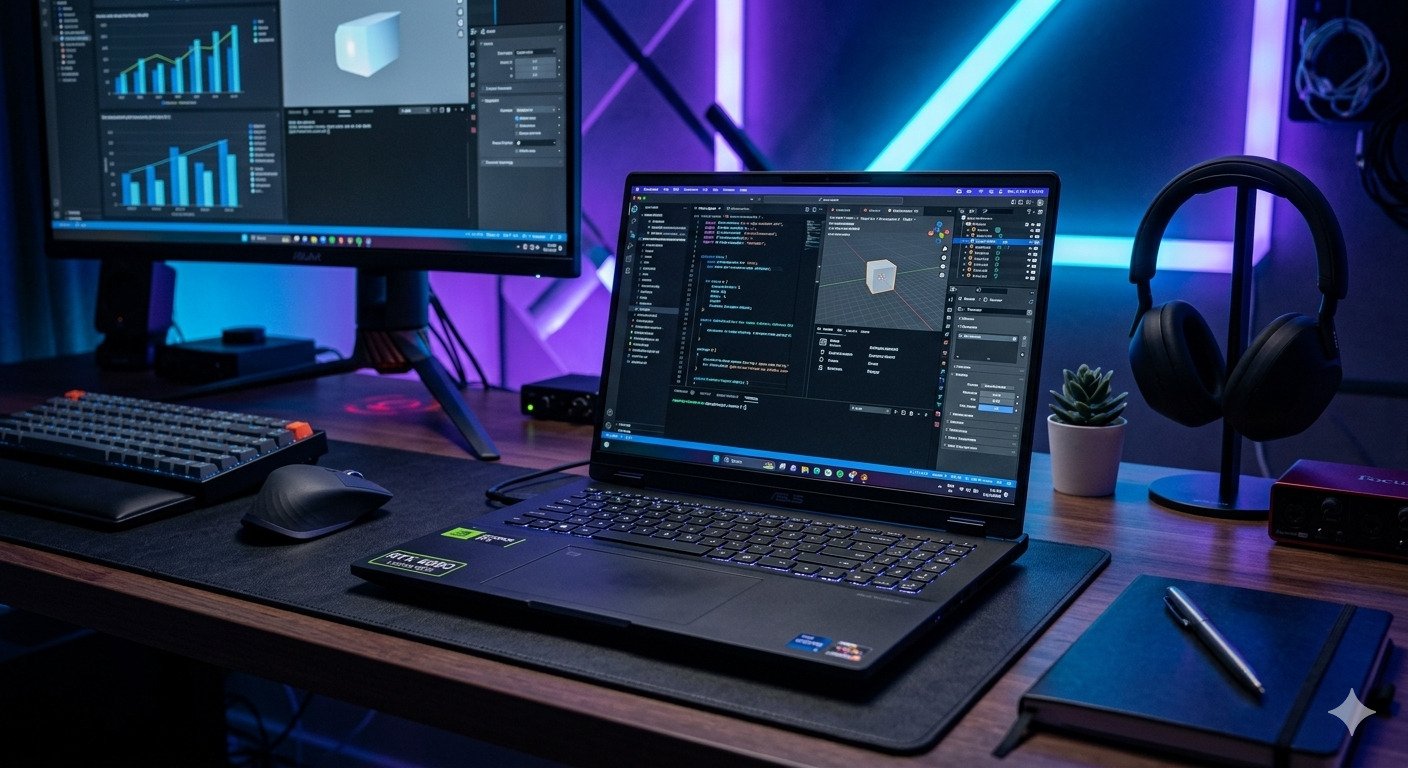
Choosing the Ultimate Image Editing Hardware Ecosystem
When optimizing your workspace for both traditional retouching and heavy local AI rendering, selecting the right hardware category is critical. Below is a breakdown of the best devices across laptops, desktops, monitors, and mobile platforms designed to maximize your efficiency.
1. High-Performance Laptops for Image Editing and Local AI
When shopping for the best laptops for image editing that double as AI workstations, you cannot rely solely on standard thin-and-light notebooks. Local AI workloads generate sustained thermal stress, meaning robust cooling systems and dedicated graphics cards are non-negotiable.
- The Windows Powerhouse Route: Look for laptops equipped with NVIDIA GeForce RTX 4080 or 4090 laptop GPUs. These offer up to 12GB and 16GB of VRAM respectively, utilizing Tensor cores to accelerate Stable Diffusion via TensorRT. Models like the ASUS ROG Zephyrus G16 or MSI Creator series combine these GPUs with stunning color-accurate OLED screens.
- The Apple Silicon Route: For creators using the macOS ecosystem, the Apple MacBook Pro with M3 Max chips is the best portable machine. Because Apple Silicon uses a Unified Memory Architecture (UMA), performance is significantly enhanced. Specifically, configuring a MacBook with 64GB or 128GB of memory allows the GPU to access massive allocation space. Consequently, this far exceeds the standard 16GB VRAM limit found on consumer desktop cards. This makes it incredibly efficient for running large local models alongside high-resolution Photoshop documents.
2.Selecting the Best Monitor for AI Image Editing & Generative Evaluation
AI-generated images frequently push the boundaries of color saturation, complex lighting, and ultra-fine details. Evaluating these outputs requires the best monitor for image editing available to guarantee that what you see on screen matches global publishing standards.
- Color Space & Depth: A professional display must offer true 10-bit color depth to smoothly render gradients without artifacting. Look for panels that guarantee 100% sRGB alongside comprehensive DCI-P3 or Adobe RGB coverage.
- Panel Technology: IPS (In-Plane Switching) panels remain the gold standard for color viewing consistency. However, Mini-LED and OLED displays are rapidly taking over. This is because they offer infinite contrast ratios and precise HDR capabilities. Ultimately, these features are essential for analyzing specular highlights and deep shadow details in AI generations.
- Top Recommendations: Displays like the ASUS ProArt PA329CRV or the BenQ SW321C offer hardware calibration capabilities, allowing you to save color profiles directly to the monitor’s internal hardware for flawless accuracy across multiple connected devices.
3. Mobile Workflows: iPad Pro Image Editing Capability
For creators who need a hybrid setup, mobile platforms have evolved past simple companion devices. Modern ipad pro image editing workflows are driven by desktop-class M-series chips (such as the M4), turning the iPad Pro into a legitimate portable studio.
- The Tandem OLED Advantage: The latest Ultra Retina XDR displays on the iPad Pro deliver exceptional peak brightness and color accuracy, making it an ideal device for precise local masking, vector work, and mobile color grading.
- AI Integration: Apps like Adobe Photoshop for iPad, Lightroom Mobile, and Procreate utilize the iPad’s hardware-embedded Neural Engine to run localized AI features like contextual object selection, generative fill, and smart masking seamlessly.
- The Ideal Setup: Pairing an M-series iPad Pro with the Apple Pencil Pro provides an unmatched tactile experience for fine-tuning AI-generated concepts, sketching base compositions for image-to-image AI workflows, or executing final brush-work adjustments away from the desktop.
The Professional Trial Check: Spotting AI Image Editing and Generator Red Flags
- The Resolution Lock: When you are testing any free or premium tool, the very first check should be the download output. Often, tools display a perfectly crisp design on the canvas. However, when you export the final output, they deliver a compressed and blurry design. In contrast, a professional-grade tool will always provide high-res raw files. Thus, you ensure that pixels do not degrade during web development and print scaling. If a tool only provides compressed JPEGs, it is a major red flag for your AI image editing workflow.
- The Metadata Trap: From the perspective of technical SEO and visual search indexing, this step is absolutely crucial. Whenever a platform saves or generates an image, does it strip away the metadata (EXIF data, geotags, camera profiles)? If a tool wipes out this metadata, modern visual search crawlers struggle to understand the image’s context, which negatively impacts your image search rankings. Always choose a tool that allows you to embed custom alt text and metadata properties within your workflow.
Mistakes to Avoid When Automating Image Creation
- Mistake #1: Not using font inventory overwrite validation during text generation: When you generate images in bulk or through automated scripts that include text layers, the biggest mistake is bypassing font inventory validation. If the system fails to check whether the target font fits correctly on the canvas, characters begin to overlap (overlapping characters issue). This completely ruins the text layout, and the design loses its pixel-perfect quality. Always ensure you apply auto-bounding and font-size validation scripts in programmatic AI image editing workflows.
- Mistake #2: Failing to track the aspect ratio lock during upscaling: When scaling up an image, you must strictly track the aspect ratio lock framework. Otherwise, your canvas metrics will distort. As a result, elements become stretched after upscaling. For example, circles turn into ovals. Furthermore, images fail to display properly in responsive layouts. Therefore, always apply dynamic aspect-ratio constraint layers in your image automation pipeline. Ultimately, this ensures that original proportions remain 100% accurate even after upscaling.
Frequently Asked Questions
Q1: What is the absolute best free alternative for commercial AI image creation?
When looking for a completely free alternative for commercial AI image generation, Stable Diffusion XL (SDXL) and Stable Diffusion 3 Medium (run locally via UI tools like ComfyUI or Automatic1111) are the top choices. Because they are open-source, they offer a true royalty-free commercial license without monthly subscription fees. If you prefer a cloud-based, hassle-free tool, SeaArt.ai and Leonardo.ai offer generous daily free tiers with commercial usage rights allowed on generations, making them excellent free options for creators and developers alike.
Q2: Can I modify text layers inside a static PNG image format without a Photoshop subscription?
Yes, absolutely. While static PNG images do not inherently contain editable text layers, you can use advanced AI-powered design tools like Canva for smart AI image editing to automatically separate and edit flat elements. Canva’s dynamic design import features can analyze a flat graphic or poster image, isolate the text regions, and convert them into fully editable text boxes. This allows you to easily change words, adjust fonts, and modify formatting directly in your web browser completely free of a Photoshop subscription.
Q3: Why does my local Qwen multi-modal engine keep blurring facial details?
If your local Qwen multi-modal model (such as Qwen-VL) is blurring or distorting facial details during image generation or analysis, it is usually due to VRAM limitations forcing a lower internal resolution, or a lack of specific Face Restoration face-vector models. Local multi-modal engines often downscale high-resolution images to fit into standard GPU memory (e.g., 8GB or 12GB VRAM). To fix this, ensure your pipeline utilizes an upscaling script with a dedicated face restoration model like GFPGAN or CodeFormer, which specifically target and reconstruct blurred facial symmetry and details.
Q4: How do modern visual search crawlers audit and score AI-generated metadata schemas?
Modern visual search crawlers like Google Lens and Pinterest Visual Graph evaluate AI images using structured data and computer vision. Furthermore, crawlers scan your code for explicit image metadata schemas. For instance, they look for the ImageObject, author, and the iptc:digitalSourceType property. Specifically, you should set this property to http://cv.iptc.org/newscodes/digitalsourcetype/trainedAlgorithmicMedia
to mark content as AI-generated. Next, the crawler’s AI verifies this schema through its own visual analysis. It checks if the alt text, page context, and embedded metadata are accurate. Ultimately, these factors score high on relevance and truthfulness. Consequently, this process directly impacts your local and global visual search rankings.
Q5: How do I optimize image alt text for visual search when using AI-generated graphics?
To optimize AI-generated graphics for visual search, your alt text must be highly descriptive, contextual, and completely free of keyword stuffing. Instead of generic tags, describe exactly what is visually present in the image as if explaining it to a visually impaired user. Include your primary target keyword naturally (e.g., “Modern minimalist office setup with a high-end laptop on a wooden desk”) and back it up with structured schema data on the backend. This helps visual search engines instantly map your image clusters to highly relevant user search queries. For tools that handle the rest of your on-page SEO, see our guide to the best AI SEO tools.
Q6: Will using AI-generated images hurt my website’s technical SEO, AI image editing, or Google ranking?
No, using AI-generated images will not inherently hurt your website’s rankings, provided they offer real value, high quality, and fast loading speeds. Search engines prioritize user experience. As long as your AI images are highly relevant to your content, optimized through professional AI image editing, compressed into modern formats like WebP or AVIF for fast performance, and properly tagged with accurate metadata and alt text, they will perform just as well as traditional stock photography or custom graphics.
Q7: What is the ideal image resolution and format for visual search indexing?
For optimal indexing by modern visual search crawlers, you should use high-resolution images. Specifically, they should be at least 1200 pixels on the shortest side. This allows the AI to clearly extract object vectors and details. Furthermore, the recommended formats are WebP or AVIF. These deliver excellent visual clarity at a fraction of the file size of traditional formats. Ultimately, ensuring a high-resolution source with a small footprint is key. Consequently, you will pass Core Web Vitals and succeed in visual search results.