
Why Traditional AI Picture Generator Tools Fail Search & Commerce in 2026
The traditional digital marketing playbook is officially broken. For years, webmasters followed a simple process: design a basic graphic, compress it to protect page speed, add a targeted Alt Text string, and hit publish. However, in 2026, failing to adopt advanced AI image editing will make your visual assets completely invisible. This guide covers the best ai picture generator and ai photo editor free options for 2026, so you can pick one that actually fits your workflow.
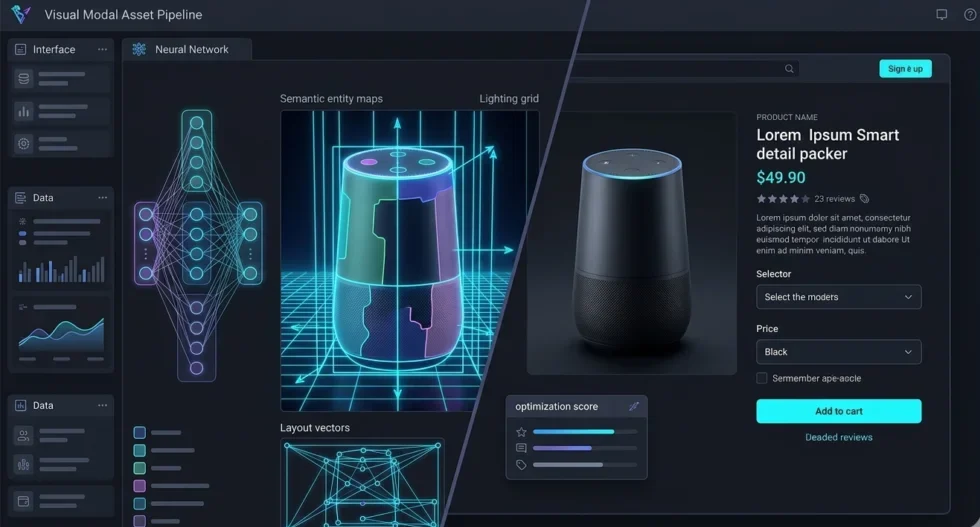
The integration of multi-modal neural networks into search engines has completely changed what is image editing at its core. Modern platforms—including Google Lens, ChatGPT Visual Search, and Gemini—no longer evaluate images by simply reading text metadata. Instead, they scan raw pixel structures, inspect lighting vectors, and analyze semantic entity layouts to verify information gain. If your graphics feature obvious machine distortions, low resolution, or unoriginal templates, search crawlers will instantly categorize your content as low-quality filler. Picking the right ai picture generator at this stage avoids that problem entirely.
MODERN ASSET PIPELINE
| Stage | Step | Description |
|---|---|---|
| 1 | Prompt Input | Raw text or base image ingestion |
| 2 | Structural Control | Applying ControlNet vectors and canvas restrictions |
| 3 | Pixel Polishing | Fix semantic bleed, render clean fonts |
Exposing the Visual “Wrapper Economy”
Many commercial photo apps are thin wrappers around the same open-source models, like Stable Diffusion, so a monthly subscription does not always buy you better results. Before you pay, test the free tier: a good ai photo editor free plan or a realistic ai picture generator should still give you usable, non-repetitive output, not just a watermarked preview.
To beat your competitors and secure top-tier organic rankings, your workflow must transition toward programmatic, precision-based control. Whether you are scaling an agency or learning how to generate ai images for free, mastering low-level layout variables is the only way to satisfy modern search criteria and convert human traffic.
Top AI Picture Generators & Editors Reviewed
Canva AI (Magic Media): The All-in-One Creator Ecosystem
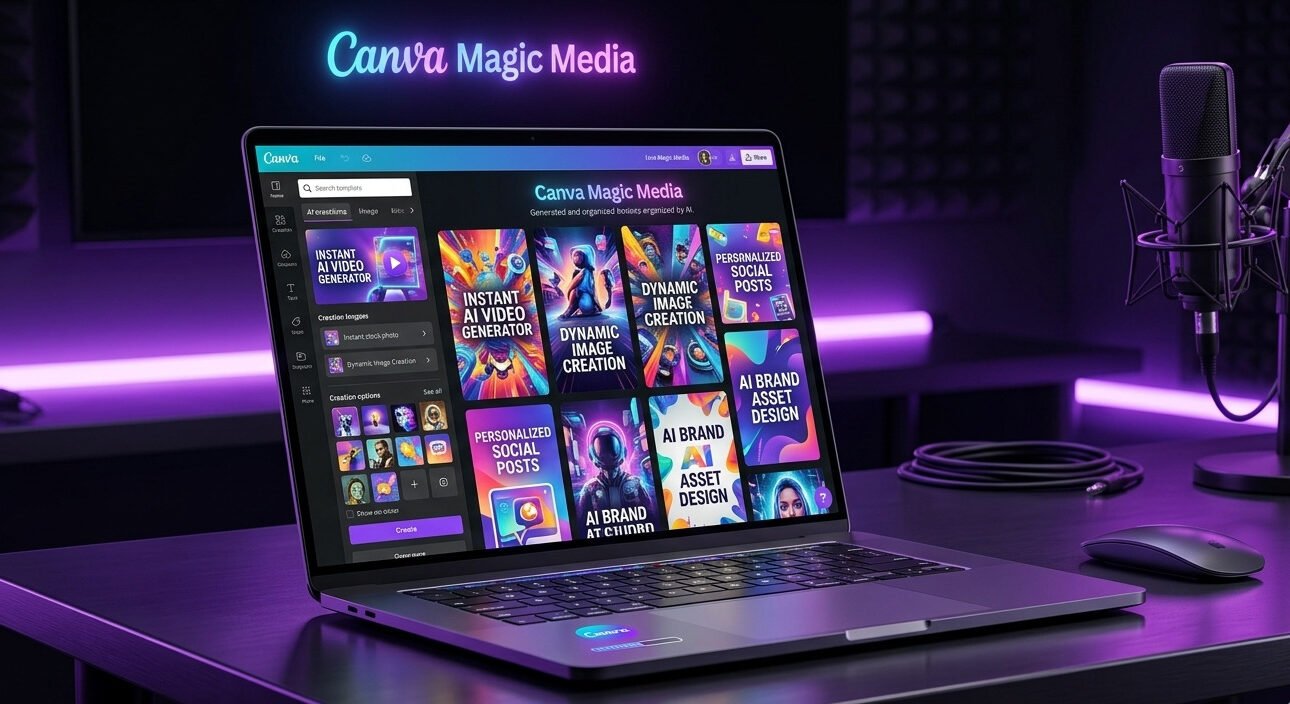
As an ai picture generator, Canva’s integrated Magic Media suite is an intuitive engine. It is designed for marketing teams and rapid visual layout prototyping. In fact, by nesting generative AI into a multi-channel canvas, it eliminates the need for standalone tools. Consequently, this setup is efficient. It helps you generate quick mockups, social media placeholders, and unified brand assets on the fly.
| Metric | Specification Standard |
| Core Architecture | Cloud-based proprietary generative design asset generator |
| Free Tier Allowance | Strict 20 premium tokens per user account monthly reset |
| Primary Use Case | Rapid social media asset production and layout mockups |
| Processing Speed | Standard cloud render queue (under 12 seconds per generation) |
Adobe Firefly: The Corporate Standard AI Picture Generator for Commercial Use
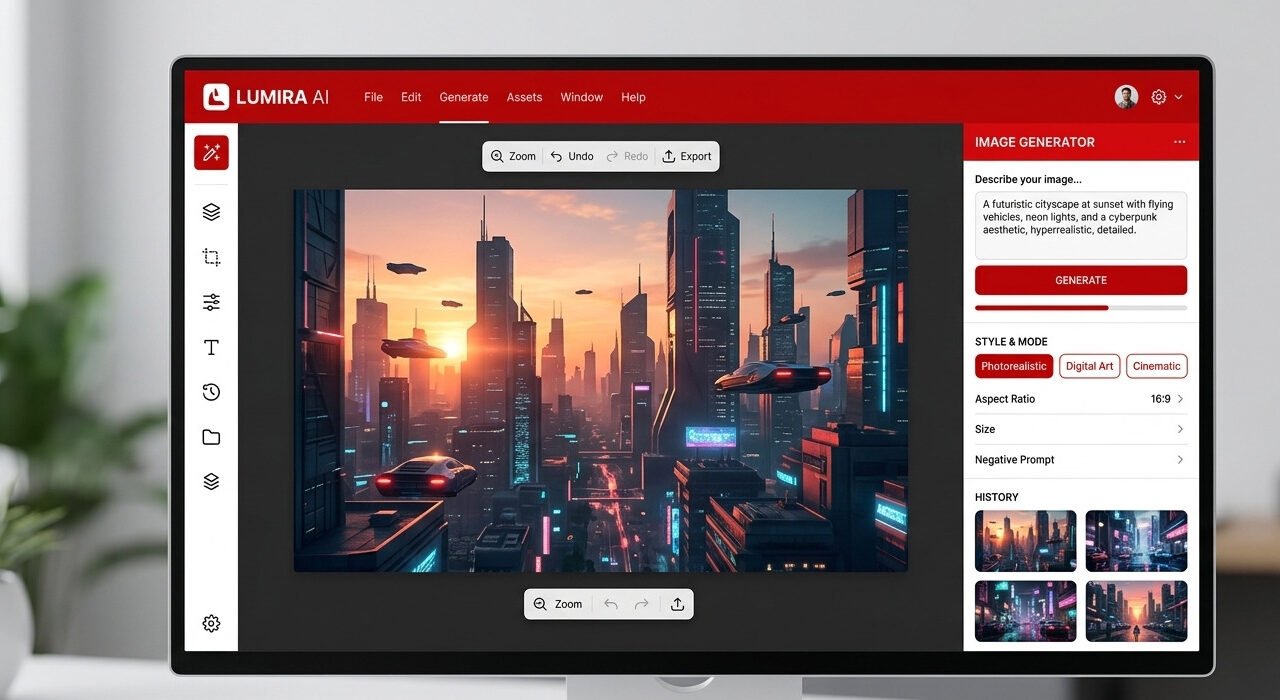
Adobe Firefly is a trusted ai picture generator and the industry baseline for digital asset production. Furthermore, it focuses heavily on legal compliance and creative control. Unlike consumer engines, Firefly is a highly controlled system. Specifically, it integrates perfectly with professional vector environments and high-end layout pipelines. Therefore, it is engineered for agencies that require absolute predictability, precise style matching, and strict intellectual property protection.
| Metric | Specification Standard |
| Model Dataset | Exclusively trained on Adobe Stock and public domain content |
| Free Tier Credits | 25 generative credits per month on standard Adobe accounts |
| Commercial Safety | 100% legally backed and commercially safe for enterprise use |
| Speed | Enterprise-grade high-priority processing queues |
Pixlr: The Browser-Based Layer Modification Suite
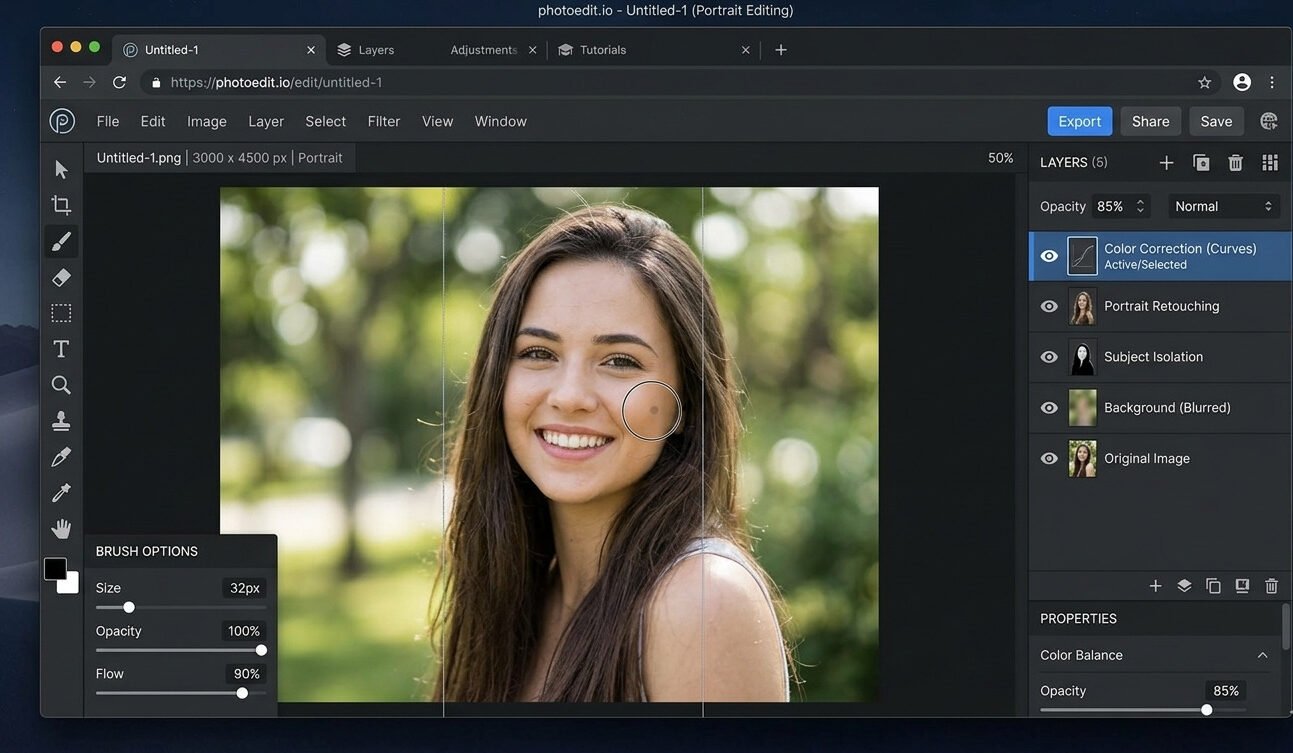
Pixlr is a browser-based ai picture generator that brings traditional desktop-class editing directly into the browser, serving as a powerful alternative for developers who need multi-layer manipulation without bulky software installations. Furthermore, it is built on top of a highly responsive, hardware-accelerated rendering engine. This engine combines standard pixel-level editing tools with modern automated AI filters for faster AI image editing. Consequently, this combination makes it exceptionally efficient for quick localized modifications, isolated asset isolation, and direct cross-platform adjustments within a clean web interface.
| Metric | Specification Standard |
| WebGL Engine | Accelerated 2D/3D browser rendering pipeline |
| Free Tier Saves | Maximum 3 exported image assets per day |
| Best For | Multi-layer asset adjustment and targeted mask edits |
| Hardware Dependency | Local RAM and CPU-bound processing architecture |
Ideogram: The Master of Text-in-Image Design
Ideogram has completely transformed the text-to-image landscape. By solving one of the oldest flaws in generative AI, it has fixed broken typography. Moreover, the platform uses a specialized neural network. This technology prioritizes text layout integration to ensure perfect results. Furthermore, it allows designers to generate posters, merchandise layouts, and complex typography banners. Consequently, the text renders perfectly every single time. Instead of treating letters as random visual patterns, it treats them as distinct structural shapes. Thus, it is an essential asset generation tool for modern graphic layout designs.
| Metric | Specification Standard |
| Typography Model | Advanced neural text layout integration layer |
| Daily Free Tier | 10 slow generation requests per day (resetting daily) |
| Primary Focus | Hyper-accurate spelling rendering and structured typography |
| Resolution Limit | Standard aspect ratio constraints on non-premium accounts |
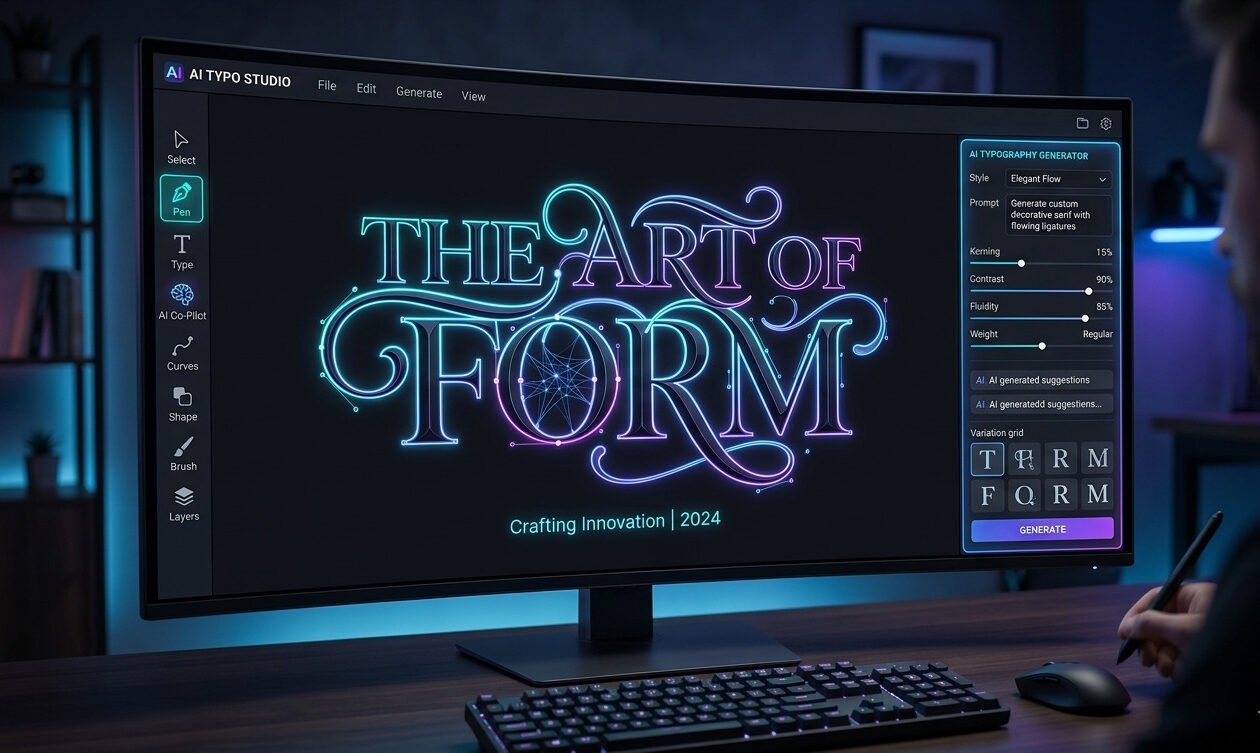
Core Solution: How to Edit Text in Image & Maintain Same Font Consistency
When dealing with pre-generated flat visual assets, a common challenge is figuring out how to edit text in an image while preserving the exact same font structure. If an automated AI engine makes a typo on an otherwise perfect layout, you don’t have to throw away the entire graphic.
To edit text in an image with same font consistency, you must separate the asset into clean, manageable layers:
- Isolate and Remove the Typo: First, import the asset into your browser layout engine or design canvas. Use a targeted generative fill tool, patch tool, or localized content-aware mask to erase the broken lettering, blending the background area completely clean.
- Analyze the Typography Profile: Inspect the visual characteristics of the original font string (such as its weight, x-height, serif style, tracking, and letter spacing). If you are using advanced cloud platforms, you can match these variables programmatically.
- Apply Your Brand Font Kit: Instead of relying on random AI regeneration to guess the letters, manually add an editable text layer over the cleared area. By selecting a matching typeface from your brand kit and tuning the tracking value, you achieve flawless structural consistency. This ensures your final marketing asset looks unified and professional without requiring a full rebuild.
Leonardo.Ai: AI Picture Generator with a High Free Allowance
Leonardo.Ai offers a powerful, enterprise-grade asset workbench. Furthermore, it is built for developers and artists who require granular control. For instance, the platform features advanced models like Alchemy and Phoenix. It also provides a comprehensive suite of tools. Specifically, these include custom model fine-tuning, control-net guidance, and live canvas AI image editing. Consequently, this deep feature set—backed by a generous daily token pool—makes it one of the most cost-effective environments for production-ready concept generation.
| Metric | Specification Standard |
| Pipeline Tech | Multi-model orchestration engine (Alchemy & Phoenix pipelines) |
| Daily Tokens Reset | 150 daily free generation tokens (generous allocation) |
| Best For | Highly detailed game assets, complex concepts, and custom models |
| Complexity Level | High-tier dashboard containing advanced parametric controls |
Resolving Common Modification Frustrations
How to Automatically Remove Paper Creases from Old Scanned Docs Using AI Image Editing
Preserving legacy files often requires handling physical wear and tear that occurs over time. If you are dealing with wrinkled archiving files, using a specialized automated pipeline is the fastest way to clean up the layout without losing text clarity.
The Local Inpainting Masking Workflow
- Import the Scanned Document: Upload your damaged file into an AI-powered design canvas or layer modification tool. If you are trying to solve how to edit scanned pdf image files, first convert the PDF page into a high-resolution PNG file to maintain pixel data before starting the edit.
- Apply a Localized Inpainting Mask: Select the specialized masking brush or patch tool from your dashboard. Carefully paint directly over the visible crease lines, making sure your brush stroke covers the shadow gradients caused by the paper fold.
- Execute the Cleanup Command: In your prompt prompt window, leave the text description blank or type a simple directive like “clean white paper background, remove shadows”. Run the execution engine to let the model deploy an ai editing images remove paper creases process. The engine will automatically replace the crease vectors with clean, flat textures that match the rest of the document layout flawlessly.
Overriding Text Inside Static Formats (JPEG & PNG)
Modifying text strings inside locked, flat formats can be incredibly frustrating because you cannot select the text layers directly. To bypass this restriction, you must use a workflow that combines layout mapping with predictive background filling.
The OCR Layout & Content-Aware Filling Process
- Analyze the Layout with OCR: Run your static asset through a layer editor featuring built-in Optical Character Recognition (OCR). This maps out the exact structural positions of the embedded characters.
- Erase the Existing Letters: If you are learning how to edit png image files online, use a targeted content-aware erase tool to remove the old text. This removes the pixels forming the letters while perfectly filling the background color underneath.
- Deploy an Online Text Overlap: To edit text in an image online, place a new editable text element directly over the cleared zone. Match the font size, weight, and track spacing of the surrounding layout to keep the design completely consistent.
- Alternative Document Strategies: If you are dealing with text-heavy assets and want to know how to edit image text in word, use Microsoft Word’s built-in conversion pipeline to turn the visual file into an editable text document. For quick updates on the go, you can learn how to edit text in image in mobile applications by using mobile layer apps to erase text blocks and apply matching typefaces right from your phone.
Legacy Visual Fixes: When to Use Microsoft Paint & Photoshop
While generative tools are incredibly powerful, legacy raster graphics editors still have a vital place in a web developer’s daily workflow. Knowing when to use manual pixel shifting versus cloud-based generative processing can save you hours of production time.
Manual Pixel Sizing vs. Generative Fill Processing
- Microsoft Paint for Instant Direct Fixes: When you need basic color updates or quick boundary clipping, Paint is highly efficient. In fact, learning how to edit an image in Paint is a great skill. Because it lacks complex layer rendering engines, it requires zero processing time. Consequently, it is perfect for quick, manual color fills on flat, basic assets.
- Photoshop for Advanced Production Workflows: When a project requires precise font handling, non-destructive layer masks, or complex graphic modifications, you must know how to edit image text in Photoshop. Furthermore, Photoshop’s advanced vector type replacement systems allow you to manipulate individual letter paths. Additionally, you can match intricate gradients and deploy enterprise-grade Generative Fill blocks. As a result, you can easily handle highly detailed commercial compositions.
The Professional Trial Check: Spotting AI Picture Generator Red Flags
- The Resolution Lock: When you are testing any free or premium tool, the very first check should be the download output. Often, tools display a perfectly crisp design on the canvas. However, when you export the final output, they deliver a compressed and blurry design. In contrast, a professional-grade tool will always provide high-res raw files. Thus, you ensure that pixels do not degrade during web development and print scaling. If a tool only provides compressed JPEGs, it is a major red flag for your AI image editing workflow.
- The Metadata Trap: From the perspective of technical SEO and visual search indexing, this step is absolutely crucial. Whenever a platform saves or generates an image, does it strip away the metadata (EXIF data, geotags, camera profiles)? If a tool wipes out this metadata, modern visual search crawlers struggle to understand the image’s context, which negatively impacts your image search rankings. Always choose a tool that allows you to embed custom alt text and metadata properties within your workflow.
Mistakes to Avoid When Choosing an AI Picture Generator
- Mistake #1: Not using font inventory overwrite validation during text generation: When you use an ai picture generator in bulk or through automated scripts that include text layers, the biggest mistake is bypassing font inventory validation. If the system fails to check whether the target font fits correctly on the canvas, characters begin to overlap (overlapping characters issue). This completely ruins the text layout, and the design loses its pixel-perfect quality. Always ensure you apply auto-bounding and font-size validation scripts in programmatic AI image editing workflows.
- Mistake #2: Failing to track the aspect ratio lock during upscaling: When scaling up an image, you must strictly track the aspect ratio lock framework. Otherwise, your canvas metrics will distort. As a result, elements become stretched after upscaling. For example, circles turn into ovals. Furthermore, images fail to display properly in responsive layouts. Therefore, always apply dynamic aspect-ratio constraint layers in your image automation pipeline. Ultimately, this ensures that original proportions remain 100% accurate even after upscaling.
Frequently Asked Questions
Q1: What is the best free ai picture generator for commercial use?
When looking for a completely free ai picture generator for commercial use, Stable Diffusion XL (SDXL) and Stable Diffusion 3 Medium (run locally via UI tools like ComfyUI or Automatic1111) are the top choices. Because they are open-source, they offer a true royalty-free commercial license without monthly subscription fees. If you prefer a cloud-based, hassle-free tool, SeaArt.ai and Leonardo.ai offer generous daily free tiers with commercial usage rights allowed on generations, making them excellent free options for creators and developers alike.
Q2: Can I modify text layers inside a static PNG image format without a Photoshop subscription?
Yes, absolutely. While static PNG images do not inherently contain editable text layers, you can use advanced AI-powered design tools like Canva for smart AI image editing to automatically separate and edit flat elements. Canva’s dynamic design import features can analyze a flat graphic or poster image, isolate the text regions, and convert them into fully editable text boxes. This allows you to easily change words, adjust fonts, and modify formatting directly in your web browser completely free of a Photoshop subscription.
Q3: Why does my local Qwen multi-modal engine keep blurring facial details?
If your local Qwen multi-modal model (such as Qwen-VL) is blurring or distorting facial details during image generation or analysis, it is usually due to VRAM limitations forcing a lower internal resolution, or a lack of specific Face Restoration face-vector models. Local multi-modal engines often downscale high-resolution images to fit into standard GPU memory (e.g., 8GB or 12GB VRAM). To fix this, ensure your pipeline utilizes an upscaling script with a dedicated face restoration model like GFPGAN or CodeFormer, which specifically target and reconstruct blurred facial symmetry and details.
Q4: How do modern visual search crawlers audit and score AI-generated metadata schemas?
Modern visual search crawlers like Google Lens and Pinterest Visual Graph evaluate AI images using structured data and computer vision. Furthermore, crawlers scan your code for explicit image metadata schemas. For instance, they look for the ImageObject, author, and the iptc:digitalSourceType property. Specifically, you should set this property to https://cv.iptc.org/newscodes/digitalsourcetype/trainedAlgorithmicMedia
to mark content as AI-generated. Next, the crawler’s AI verifies this schema through its own visual analysis. It checks if the alt text, page context, and embedded metadata are accurate. Ultimately, these factors score high on relevance and truthfulness. Consequently, this process directly impacts your local and global visual search rankings.
Q5: How do I optimize image alt text for visual search when using AI-generated graphics?
To optimize AI-generated graphics for visual search, your alt text must be highly descriptive, contextual, and completely free of keyword stuffing. Instead of generic tags, describe exactly what is visually present in the image as if explaining it to a visually impaired user. Include your primary target keyword naturally (e.g., “Modern minimalist office setup with a high-end laptop on a wooden desk”) and back it up with structured schema data on the backend. This helps visual search engines instantly map your image clusters to highly relevant user search queries. For tools that handle the rest of your on-page SEO, see our guide to the best AI SEO tools.
Q6: Will using AI-generated images hurt my website’s technical SEO, AI image editing, or Google ranking?
No, using AI-generated images will not inherently hurt your website’s rankings, provided they offer real value, high quality, and fast loading speeds. Search engines prioritize user experience. As long as your AI images are highly relevant to your content, optimized through professional AI image editing, compressed into modern formats like WebP or AVIF for fast performance, and properly tagged with accurate metadata and alt text, they will perform just as well as traditional stock photography or custom graphics.
Q7: What is the ideal image resolution and format for visual search indexing?
For optimal indexing by modern visual search crawlers, you should use high-resolution images. Specifically, they should be at least 1200 pixels on the shortest side. This allows the AI to clearly extract object vectors and details. Furthermore, the recommended formats are WebP or AVIF. These deliver excellent visual clarity at a fraction of the file size of traditional formats. Ultimately, ensuring a high-resolution source with a small footprint is key. Consequently, you will pass Core Web Vitals and succeed in visual search results.
