
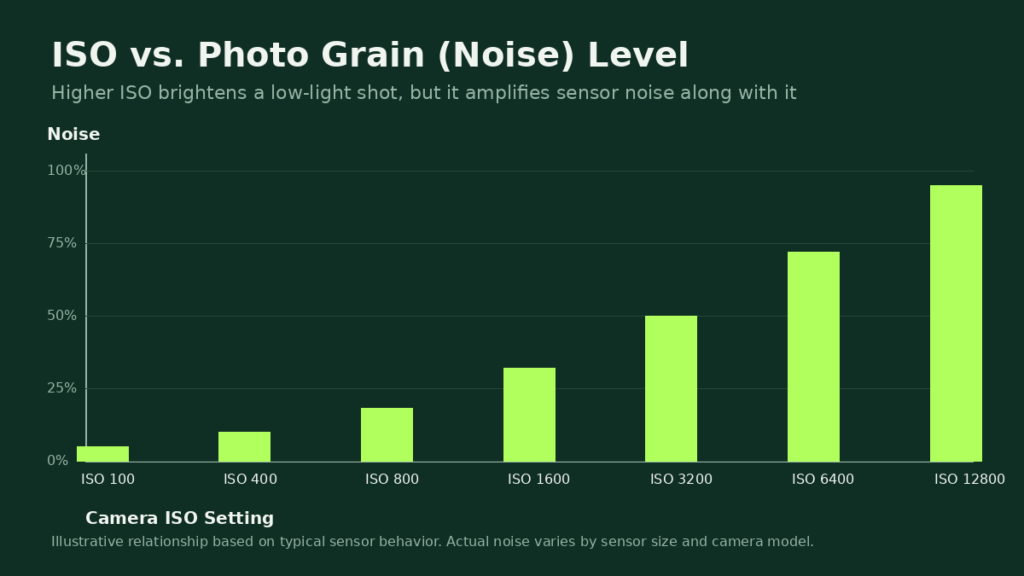
You open your camera roll expecting a clean shot, and instead the photo looks like it was dusted with sand. That gritty, speckled texture is photo noise, commonly called grain, and it shows up most in low light. This guide covers how to fix grainy photos on your phone, in Photoshop, in Lightroom, and with modern AI denoising tools, so you can save shots you’d otherwise delete.
Grain isn’t always bad. Film photographers add it on purpose for mood. But when it hides detail in a portrait or ruins a product photo, you need a real fix, not a vague filter suggestion. Below is a practical, step-by-step breakdown of how to fix grainy photos depending on the device and software you already have.
Quick answer: for a fast fix, run the photo through an AI denoising tool and zoom to 100% to check the result. For more control, use Lightroom’s Denoise feature on a RAW file, or Photoshop’s Reduce Noise filter with Preserve Details set around 40-50%. Avoid maxing out any noise slider, since that flattens real detail along with the grain.
Grain vs. Digital Noise: Is There a Difference?
The terms get used interchangeably, but there’s a small technical difference. Film grain comes from physical light-sensitive particles in film stock, it’s organic and often added back on purpose for a vintage look. Digital noise is what actually shows up in modern photos, it’s electronic interference from the camera sensor, not real texture. When people search for how to fix grainy photos, they almost always mean digital noise, since very few people shoot on film anymore. This guide focuses on removing that kind of unwanted sensor noise, not stylistic film grain.
Why Are Your Photos Grainy? (Causes Explained)
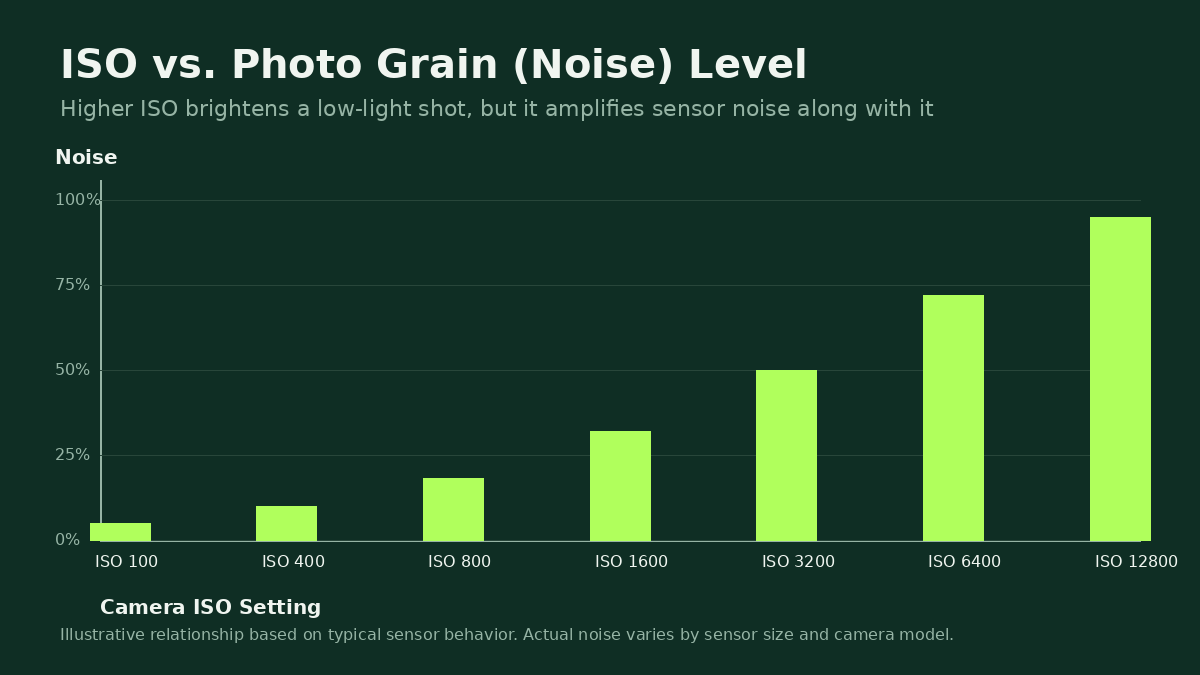
Before learning how to fix grainy photos, it helps to know why they happen. Grain is random pixel noise your camera sensor adds when it doesn’t receive enough light information. The main causes are:
- High ISO: raising ISO brightens a dark scene, but it amplifies sensor noise along with it.
- Low light: less light reaching the sensor means more guessing, and guessing looks like grain.
- Small sensor size: phone sensors are tiny compared to DSLR or mirrorless sensors, so they struggle more in the dark.
- Heavy compression: saving a photo at a low quality setting, or sending it through an app that recompresses it, introduces blocky noise on top of sensor noise.
- Digital zoom: zooming in digitally stretches fewer pixels across a bigger area, which exaggerates any existing noise.
Once you know the cause, the fix gets a lot more targeted. A photo that’s grainy from low light responds well to AI denoising. A photo that’s grainy from compression needs a cleaner export, not just noise reduction. For a deeper technical breakdown of how sensor noise forms, Wikipedia’s image noise overview covers the physics behind it.
How to Fix Grainy Photos on Your Phone
Most people first search for how to fix grainy photos because of a phone shot that didn’t turn out. The good news is both iPhone and Android have built-in and free third-party options.
Fix Grainy iPhone Photos
- Open the Photos app and select the grainy image.
- Tap Edit, then open the Light and Color adjustments.
- Lower Brilliance and Noise Reduction isn’t directly exposed on iPhone, so instead reduce Sharpness slightly first, since sharpening amplifies grain.
- For a stronger fix, use a free app like Snapseed, open the Details tool, and pull the Structure slider down rather than up.
- Export at full resolution, never through Messages or WhatsApp first, since both recompress images and make grain worse.
Fix Grainy Android Photos
- Open Google Photos and select the photo.
- Tap the edit icon and check the Suggestions tab, Google Photos sometimes auto-offers a denoise suggestion on low-light shots.
- For manual control, install Snapseed (same app works on Android) and use the Details tool the same way as above.
- If the phone has a dedicated Night Mode or Pro Mode, re-shoot with a lower ISO and let the shutter stay open slightly longer instead of relying on an edit afterward.
Phone edits are fine for casual sharing, but they rarely remove grain completely. For social posts or anything you plan to print, move on to an AI tool or desktop software.
How to Fix Grainy Photos Using AI Tools
The fastest and often cleanest way to fix grainy photos today is AI-based denoising. These tools are trained to tell the difference between real detail and random noise, something older sharpening filters could never do reliably. If you want a breakdown of which AI picture tools handle this well alongside other editing tasks, see our guide to the best AI picture generator and editor tools.
- Upload the photo to an AI denoiser or AI photo editor.
- Let the model separate noise from detail automatically, most tools do this in under 30 seconds.
- Compare the before and after at 100% zoom, not the thumbnail, grain is only obvious up close.
- Download the processed file in the original resolution, downscaling can hide remaining grain that reappears when the photo is viewed full-size later.
AI tools are the best option when the photo was shot at high ISO in low light, since that kind of noise is random and pattern-based, which is exactly what these models are trained to recognize.
How to Fix Grainy Photos with the Right AI Tool
Not every AI photo tool handles noise the same way. When comparing options to fix grainy photos, check for a few things specifically:
- Before/after preview at full zoom, not just a thumbnail comparison, so you can actually judge detail loss.
- Separate controls for noise and sharpening, tools that bundle both into one slider tend to over-sharpen while denoising.
- RAW file support, if you shoot RAW, the AI model gets more information to work with than it does from a compressed JPEG.
- Batch processing, useful if you’re fixing a whole set of grainy photos from the same low-light event instead of one at a time.
How to Fix Grainy Photos in Photoshop
Photoshop gives you the most control if you want to fix grainy photos without losing fine detail like skin texture or fabric. Here’s the standard workflow:
- Open the image and duplicate the background layer (Cmd/Ctrl + J).
- Go to Filter > Noise > Reduce Noise.
- Set Strength around 6-8 and Preserve Details around 40-50% as a starting point, pure noise removal at full strength flattens skin and texture.
- Increase Reduce Color Noise to around 50-60%, color speckling is usually more distracting than luminance grain.
- Zoom to 100%, check shadows and midtones separately since grain is almost always worse in shadows.
- If noise remains in only the dark areas, use Camera Raw Filter instead and apply noise reduction selectively using a luminance range mask.
For raw files, Adobe Camera Raw’s Detail panel, documented on Adobe’s own noise reduction page, generally outperforms the standalone Reduce Noise filter because it works on raw sensor data before any sharpening is applied.
When you export, pick a high-quality JPEG setting or save as TIFF/PNG if the photo allows it. Exporting at a low quality setting after you’ve just spent time on noise reduction re-introduces compression artifacts that look a lot like the grain you removed, which wastes the whole edit.
How to Fix Grainy Photos in Lightroom
Lightroom is usually the simpler path if you shoot in raw format regularly. To fix grainy photos here:
- Go to the Detail panel in the Develop module.
- Under Noise Reduction, raise Luminance first, start around 30-40 for heavy grain.
- Raise Luminance Detail slightly if fine texture starts disappearing.
- Use Color noise reduction separately for colored speckling, usually 15-25 is enough.
- Zoom to 1:1 and compare, Lightroom’s default preview at fit-to-screen hides how much grain is actually left.
Lightroom’s AI-powered Denoise feature, found by right-clicking the photo and choosing Enhance, uses a trained model similar to dedicated AI tools and typically produces cleaner results than the manual sliders alone on very noisy shots.
Denoise processing can take a minute or two per photo since it’s generating a new DNG file in the background. It’s worth the wait on a keeper shot, but for a quick social post, the manual Luminance slider is faster and usually good enough.
How to Fix Grainy Photos for Good: Camera Settings That Prevent Grain
Fixing grain after the fact always costs some detail, so the better long-term answer is preventing it at capture. A few settings matter more than people expect:
- Keep ISO as low as the light allows, raise shutter speed or open the aperture first before raising ISO.
- Use a tripod or brace the phone or camera so you can use a slower shutter speed without ISO going up.
- Shoot in RAW instead of JPEG when possible, RAW holds more detail that noise reduction tools can work with.
- Avoid digital zoom, crop afterward instead, since cropping doesn’t amplify noise the way zooming does.
- Turn on Night Mode on phones in low light rather than letting the camera push ISO sky-high automatically.
How to Fix Grainy Photos: Common Mistakes to Avoid
- Over-sharpening: sharpening always boosts grain along with edges, apply it last and lightly.
- Maxing out noise reduction: pushing the slider to 100 produces a smeared, plastic look, aim for the point where grain is reduced but texture remains.
- Fixing a heavily compressed copy: if the original was sent through a messaging app, noise reduction is working on top of compression artifacts, go back to the original file if it exists.
- Ignoring color noise: luminance and color noise need separate sliders in most editors, fixing only one leaves the photo looking off.
When You Shouldn’t Fix Grainy Photos
Not every grainy photo needs fixing. Street photography, black-and-white portraits, and low-light concert shots often lean into grain as part of the mood, the same way film photographers always have. Before you reach for noise reduction, ask whether the grain is hiding detail you need, or just adding texture that fits the shot. If it’s the latter, a light touch, or no edit at all, is often the better call than fully smoothing the image out.
Frequently Asked Questions
Why Are My Photos Grainy?
Most grainy photos come from high ISO in low light. Your camera boosts sensor sensitivity to capture a usable image in the dark, and that boost amplifies random pixel noise along with it.
Why Are My iPhone Pictures Grainy?
iPhones push ISO up automatically in Smart HDR and Night Mode scenes, especially indoors or at dusk. The smaller sensor also struggles more than a dedicated camera in low light, which is why grain shows up faster on a phone than on a DSLR shooting the same scene.
How Do I Make a Grainy Photo Clear?
Use an AI denoising tool or the manual noise reduction sliders in Photoshop or Lightroom. AI tools are faster and usually preserve more detail, while manual sliders give more control for photos with mixed grain and real texture, like skin or fabric.
Does Grain Ruin a Photo?
Not always. Light grain in a moody or black-and-white shot can look intentional. It becomes a problem when it hides important detail, like eyes in a portrait or text in a product photo, which is when it’s worth going through the steps above.
Can I Fix Grainy Photos for Free?
Yes. Snapseed on mobile, Google Photos’ built-in suggestions, and Lightroom’s free mobile app all offer some level of noise reduction at no cost. Most AI photo tools also offer a free tier or a limited number of free edits, which is usually enough for occasional fixes. Paid tools and desktop software like Photoshop tend to give more precise control once you’re editing regularly.
Should I Remove All Grain from a Photo?
Not necessarily. Removing every trace of grain can leave skin, hair, and fabric looking artificially smooth, almost plastic. A better target is reducing grain enough that it stops distracting from the subject, while leaving just enough texture that fine detail still reads as real.
Conclusion
There’s no single best way to fix grainy photos, the right method depends on the photo and the tools you already have open. A quick phone edit works for a photo you’re about to share. Photoshop and Lightroom give you the most control for photos you plan to print or sell. AI denoising tools are the fastest middle ground, and often the best starting point before you fine-tune manually. Try the method that matches your workflow, zoom in to 100% to check the real result, and avoid pushing noise reduction past the point where detail starts to disappear.
