
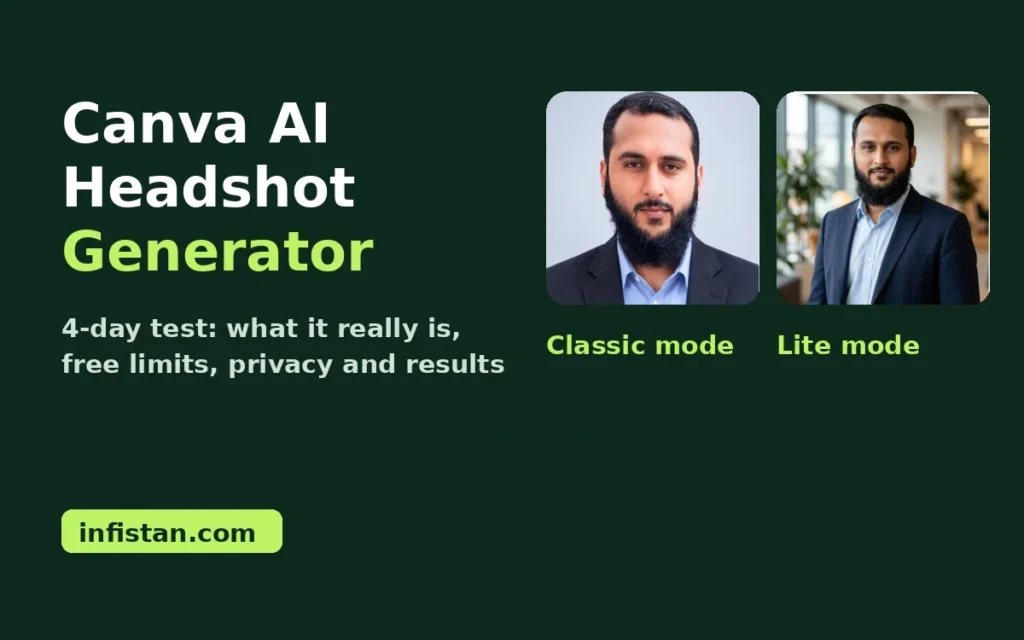
The Canva AI headshot generator is a quick way to restyle one photo of yourself into a cleaner, more professional picture. It is free for one headshot a day. On the free plan it works from one photo and does not learn your face, so the result is only as good as the photo you give it.
Two things to know before you start. First, the tool behind Canva’s official AI headshot page is a third-party app called ProfilePhoto, not a Canva-made model. Second, a good input photo gives a useful result, and a bad input photo gives a confident but noticeably changed face, with no warning.
If you need one decent LinkedIn picture, have a clear face photo, and do not want to pay, it is worth trying. If you need a set of consistent pictures that look like you from many angles, it is the wrong tool.
Which Canva tool are you actually using?
When you open Canva’s AI headshot page and click through, you land in an app called ProfilePhoto inside the Canva editor. The app’s Canva page lists the developer as Imagineers Studio Inc. (shown to users as “ProfilePhoto Team”), and it is not presented as a Canva-built model.
This matters for three reasons:
- The free limit, the styles and the quality come from the app, not from Canva’s main plan.
- The app has its own terms, separate from Canva’s privacy settings (see the privacy section below).
- Canva lists other AI photo features with similar names, such as an AI profile picture generator, so a guide about one of them may not apply to the others.
Before the app runs, it asks for permissions. One of them is access to your Canva uploads library. Read that list on your own screen before you accept, because it can change.
This article covers only the ProfilePhoto path. I did not test Canva’s other AI photo tools, so I make no claims about them.
How the Canva AI headshot generator works: it restyles one photo
There are two kinds of AI headshot tools, and the difference decides how much the result looks like you.
| Restyle tools (Canva’s flow) | Training tools (dedicated headshot services) | |
|---|---|---|
| Photos you upload | 1 on the free plan (the app accepts up to 5 in its paid Best quality mode) | 10 or more, according to the vendors’ own pages |
| What the AI does | Changes clothes, background and lighting on your photo | Learns your face, then creates new pictures of you |
| Where the likeness comes from | Your one photo | Many photos from different angles |
Because Canva’s free flow starts from one photo, it can polish a good picture, but it cannot know what your face looks like from the side or at a distance. When the photo gives it little to work with, it fills the gaps by guessing.
How to use the Canva AI headshot generator, step by step
- Sign in to Canva (a free account is enough), open the Canva AI headshot generator page, and continue into the editor.
- Accept the ProfilePhoto app’s permissions after reading them.
- Upload one clear photo of yourself. Canva’s own page advises a well-lit, head-and-shoulders photo where you face the camera with a neutral expression.
- Choose a style. Pick one marked free if you are on the free plan.
- Choose a mode. I used Classic and Lite. Portrait and 4K were also listed, and I did not test them.
- Press Generate and wait for the result.
- The result appears in the app panel. Press “Add to design” (or “Replace image”) to put it in your Canva design, then download the design from Canva as usual. “Generate again” uses another credit.
The screen can look different from one day to the next, so do not rely on a button being in the same place. Take a screenshot of the panel before you click Generate.
Does it still look like you?
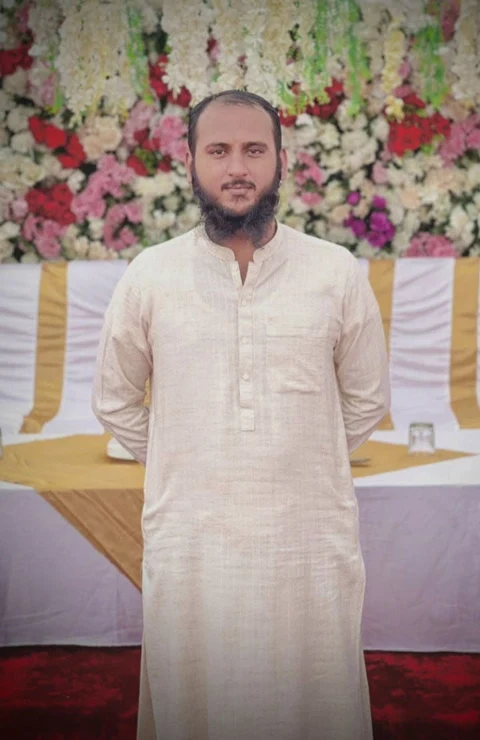
I ran the ProfilePhoto path on four separate days, one free generation per day, using my own photos. Days 1 to 3 used the same clear face photo. Day 4 used a full-body photo where my face was small. Nothing here is a claim about other tools.
| Day | Style and mode | What I saw |
|---|---|---|
| 1 | Corporate, Classic | Clean studio-style cutout with a plain background |
| 2 | Formal, Classic | Similar studio result, different outfit style |
| 3 | Corporate, Lite | Photorealistic office scene, but the face looked slimmer and less like the original (my opinion, see the verdict below) |
| 4 | Corporate, Classic | A polished studio portrait with a neater beard and smoother face than the real photo, on a background that was not in the original. The app showed no warning |




Three points from this test:
- Classic gave a studio look. Lite gave a more realistic scene, and that was where the face changed most. The app says the same on its own screen: Classic tends to do better at faces, and Lite tends to be more photorealistic.
- Day 4 is the main risk. The tool never says “this photo is too far away.” It rebuilds the face from very few pixels and presents the result as if nothing is wrong.
- The screen changed between days (see the free plan section), so settings I used on one day may not be there on yours.
The likeness verdict
I ran my own photos through the tool, so this is how the results look to me. Judge it yourself too: put each result next to a recent photo and ask someone who knows you if it is really you.
| Result | How close to the real photo |
|---|---|
| Day 1, Corporate, Classic | Stayed near the original in beard and overall look. Skin is smoother than in real life |
| Day 2, Formal, Classic | About the same as day 1, with a white shirt and a dark blazer |
| Day 3, Corporate, Lite | The nicest-looking scene, but the face is narrower and the beard shape changed. It drifted the most |
| Day 4, far-away photo | Changed. Neater beard, smoother face, and a studio background that was not in my photo |
If I had to pick one for LinkedIn, I would choose a Classic result from day 1 or day 2, because they stay closest to my real face. The Lite picture has the best setting, but a profile photo that drifts from your real face defeats the purpose.
What the free plan allows
As checked in the app between 13 and 16 November 2026:
- Free: 1 credit per day, which makes 1 headshot per day. The app says the credit refreshes daily, and in my test it came back 24 hours after my last generation.
- Subscribed: ProfilePhoto Pro gives up to 100 credits per day and access to the best quality model. On the app’s checkout page on 17 November 2026 it showed PKR 1,980.98 per week (billed weekly, cancel anytime), which is roughly USD 7 at the rate shown there (1 USD = 283.4 PKR). The price can change with country and exchange rate. The developer’s terms say no refund for the unused part of a subscription and no refund for annual plans.
- “Best quality” mode: costs 10 credits per image, so it is not possible on the free plan.
- Custom instructions: Pro only.
- Styles: 16 styles were shown on days 1 to 3, with 10 free and 6 marked PRO. On day 4 the app showed 12 styles and the Outfit and Background sections were gone.
Two quirks worth knowing:
- The credit counter can be wrong. On day 4 it showed 0 credits left, but a page reload showed 1 of 1. If it says zero, reload before you give up.
- Defaults change. The mode and the gender setting were different from day to day, so check both before you press Generate.
What happens to your photo?
There are two layers, and checking only one gives you half the picture.
- Canva’s own setting. In Canva’s privacy controls there is a toggle for letting AI features learn from your content. It was OFF in my test. Canva’s privacy policy allows content to be used for training unless you opt out.
- The app developer’s privacy policy. The app is made by Imagineers Studio Inc. and has its own policy (last updated 21 November 2025). It says the developer may collect your name, email and anything you give it, plus device data such as IP address, browser type and access times. It says it may use aggregated and anonymized data to improve the service, may share data with service providers that help run it, and keeps data “as long as necessary” until you ask for deletion or it is no longer needed.
- What the policy does not say. It does not mention uploaded photos, face data, a retention period or AI model training by name. So I cannot tell you how long your photo is kept or whether it is used for training.
- The app’s terms. The service is provided “as is” and the developer’s liability is limited to the amount you paid.
- What the app can do inside Canva. According to its Canva listing, when the app is open in a design it can read and change the design’s contents, and access your uploaded media in Canva and upload new media on your behalf.
Because the policy is silent on photos and training, only upload a photo you are comfortable having stored by a third-party company you do not know well. In Canva’s privacy settings, turn the AI learning toggle off if you do not want your content used for training. If you want your photo deleted, ask the developer at support@imagineers.studio. Do not upload someone else’s face without their permission.
When Canva is the right choice, and when it is not
Use it when:
- You already have one clear, close-up, well-lit photo of your face.
- You need one picture for a LinkedIn profile, a CV or a team page, and you do not want to pay.
- You are fine regenerating once a day until you get a result you like.
Skip it when:
- Your only photos are far away, full-body, dark or blurry. Day 4 shows what happens.
- You need many pictures that all look like you, for example for a website, a brand or a speaker page.
- You are not comfortable with an app from a third-party developer handling your photo before you have read its terms.
- Looking like you matters more than looking polished. Check the result against your real face before you post it.
If your photo is only grainy or dark, fix that first. Our guide on how to fix grainy photos covers it. For other tools that create or edit pictures, see our AI picture generator guide.
Canva vs dedicated headshot tools
Dedicated services such as Aragon and HeadshotPro ask for 10 or more photos and train on your face. I have not tested them for this article, so I cannot say which looks better. What I can say is how the approach differs:
- Canva’s flow: 1 photo, free daily credit, fast to try, likeness depends on your input.
- Training tools: more photos and more setup, and the tools I looked at are paid. Check each tool’s own page for current prices and privacy terms before you buy.
A sensible order: try the free Canva flow first with your best photo. If the result does not look like you, that is your signal to look at a training tool, not to keep regenerating.
FAQ
Is Canva’s AI headshot generator free?
You get 1 free generation per day through the ProfilePhoto app. More credits need ProfilePhoto Pro, which showed PKR 1,980.98 per week (roughly USD 7) on 17 November 2026.
Is it made by Canva?
The official page leads to ProfilePhoto, an app inside Canva made by Imagineers Studio Inc.
Will it look like me?
Only if your photo is already clear and close. A far-away photo gave a noticeably changed face in my test.
Can I upload a friend’s photo?
Only with their permission. Do not upload other people’s faces without asking.
Does Canva train its AI on my photo?
Canva’s policy allows it unless you opt out, and the toggle was off in my test. The app has its own privacy policy, which does not mention uploaded photos or AI training by name.
Why did I see 0 credits when I should have 1?
The counter can be wrong. Reload the page and check again.
Which mode should I choose?
Classic gave a clean studio look. Lite gave a more realistic scene but changed the face more in my test.
Sources
Checked on 17 November 2026.
- Canva AI headshot generator page
- ProfilePhoto on Canva (app page and developer information)
- ProfilePhoto generator page (styles, modes, Best quality)
- ProfilePhoto privacy policy
- ProfilePhoto terms of service
- Imagineers refund and cancelation policy
- Price: read from the app’s own subscribe page, opened from inside Canva on 17 November 2026. I found no public pricing page.
